AI YOUTUBE WORKFLOW · HONEST COSTS · REAL STEPS
AI visuals for YouTube: should you use images, image-to-video or direct AI video?
A practical guide to choosing and budgeting AI visuals for YouTube videos, with honest tradeoffs, official pricing links and prompt templates.
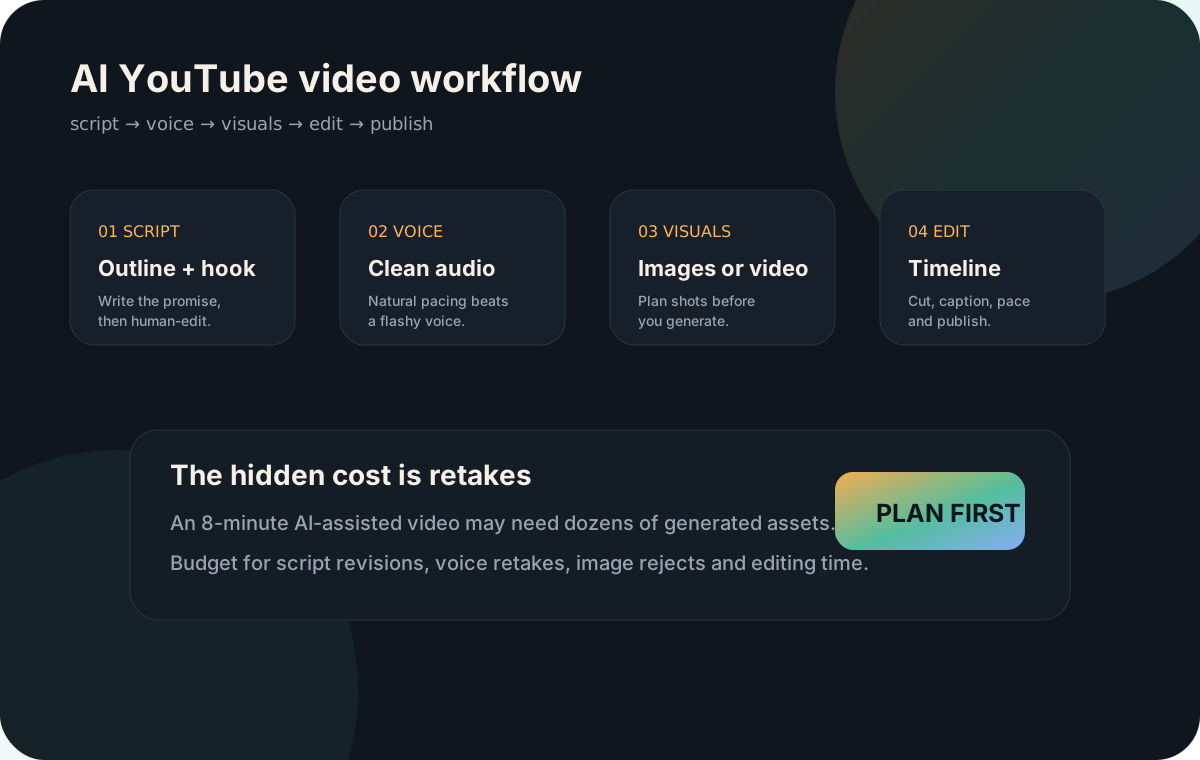
Choose the visual method before generating anything
YouTube visuals should follow the script. The biggest beginner mistake is generating random beautiful images, then trying to force them into a timeline. Instead, create a shot list and decide whether each scene needs an AI image, image-to-video clip, direct AI video, stock footage, screenshot or simple graphic.
Images vs image-to-video vs direct AI video
AI images
Best when you need affordability and control. Create stills, then add motion in the edit. Great for faceless channels and explainers.
Image-to-video
Best when you want controlled motion from a chosen frame. Often stronger for consistency than pure text-to-video.
Direct AI video
Best when motion is the point: cinematic shots, ads, product demos, scenes and B-roll. Usually costs more and needs more retakes.
The honest difference: AI images vs image-to-video vs direct AI video
The choice is not only about quality. It affects cost, control, editing time and retakes. For YouTube, the best workflow is often mixed: still images for stable explanation, image-to-video for controlled motion and direct AI video only when movement is essential.
| Method | What it means | Best use | Cost/retake reality |
|---|---|---|---|
| AI images | You generate still frames, then animate them with zooms, pans, parallax or simple edits. | Faceless videos, explainers, thumbnails, documentary B-roll, storyboards and low-budget channels. | Usually cheapest and easiest to control, but it can look static if you do not edit well. |
| Image-to-video | You start with a chosen image and ask a video model to add motion from that frame. | Keeping a character, product, scene or visual style more consistent across shots. | More controlled than pure text-to-video, but failed motion, weird hands or camera drift still create retakes. |
| Direct AI video | You prompt the video model directly and let it create the full moving shot. | Cinematic B-roll, ads, product shots, action scenes and moments where motion is the main value. | Often the most expensive route because each failed generation costs seconds, credits or both. |
Current cost signals to watch
Official pricing changes often, so treat every estimate as a planning number. OpenAI lists Sora API video prices per second, Google lists Veo 3.1 pricing per second in Gemini API docs, and Runway uses credits for generations. For planning, direct AI video can quickly move from a few dollars to much more once you add retakes.
Visual shot-list prompt
Read this YouTube script and create a visual plan. For every 5–10 seconds, give me: scene number, narration summary, visual purpose, image prompt, video prompt, style consistency notes, whether to use AI image, image-to-video, direct video, stock footage or text overlay, and expected retake risk.
Next step
Once visuals are planned or generated, edit them into a timeline. Continue with editing an AI YouTube video.